
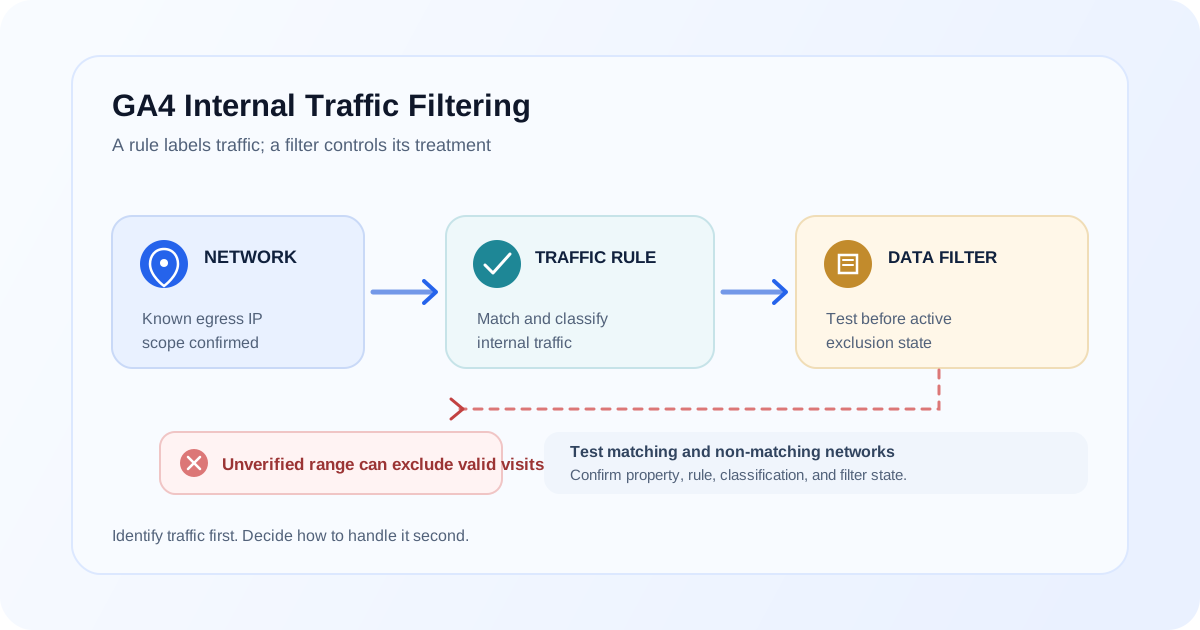
Internal traffic filtering can make reports easier to interpret, but a mistaken definition or filter state can exclude visits you intended to measure. The important distinction is between identifying traffic and deciding how a data filter handles it.
GA4's internal-traffic setup uses rules to identify matching traffic, commonly by IP address, and add an internal traffic classification to events. A property data filter then controls what happens to events classified that way. Understand both parts before using an exclusion filter on production data.
The rule and the filter do different jobs
Think of the workflow in two stages:
Request matches an internal-traffic rule
                  ↓
Event receives an internal traffic classification
                  ↓
Property data filter applies its configured state
The rule defines which incoming events should be recognized as internal. The data filter determines how matching events are handled. The exact available settings and labels can change, so check the current GA4 Admin interface before applying changes.
| Configuration element | What it controls | Example check |
|---|---|---|
| Internal traffic rule | Conditions that label matching traffic | Does the IP condition match the intended office network? |
traffic_type value |
Classification value attached by the rule | Is the value consistent with what the filter expects? |
| Data filter | Treatment of events carrying that classification | Is the filter in a testing or active state? |
| Reporting scope | Property and data stream affected | Are you editing the correct property and stream? |
Common mistakes and how to avoid them
Excluding a guessed or incomplete IP range
An office may use a known public IP range, but remote staff, VPNs, mobile connections, and changing network assignments can behave differently. If the rule includes too broad a range, valid visitor traffic can be classified as internal; if too narrow, employee traffic can remain in reports.
Ask IT or the network owner for the current public egress addresses and intended scope. Test from the networks that matter, and document the rule's owner and review date.
Activating an exclusion before testing
A testing state is useful for checking whether the rule and filter identify the expected traffic without immediately applying the exclusion. Verify the behavior in the property and with controlled visits before using an active filter. Once excluded events are processed, do not assume you can restore them to standard reports retroactively.
Confusing developer traffic with internal traffic
Developer or test activity may be handled through a separate traffic classification or workflow from office traffic. Do not assume every test device is covered by an IP rule, or that all internal employees use a single network. Define whether your goal is to exclude staff activity, developer testing, staging traffic, or some combination, and choose a deliberate classification approach.
Forgetting that data filters affect the property
A filter is not just a report view. Review the selected property and filter state before activating it. Keep a record of the intended classification and verify which events are affected. Use an appropriate test environment or reporting comparison where available before relying on an exclusion.
Testing from the wrong network or property
A visit from a home network will not test an office IP condition. Likewise, observing events in a different property or stream tells you little about the filter you are configuring. Confirm the Measurement ID, property, stream, and network path for each test.
Treating internal traffic rules as a replacement for QA
Filters can reduce certain internal visits in reports, but they do not validate event names, prevent duplicate tags, or remove all test and automated activity. Keep implementation QA separate from traffic classification.
A safe setup and validation workflow
- Define the purpose. Decide whether the rule targets office staff, developers, a test network, or another clearly scoped group.
- Confirm network details. Obtain current public egress IP addresses or ranges from the network owner; do not guess.
- Check the property and stream. Confirm the GA4 destination used by the site and identify the property where the rule and filter will apply.
- Create or review the internal-traffic rule. Verify its match condition and the classification value that it applies.
- Use the filter's testing state. Validate controlled traffic before choosing an active exclusion state.
- Test from included and excluded networks. Compare a visit from a matching network with a visit that should not match, using available diagnostic tools and reports.
- Review the impact and approve activation. Confirm the rule is neither too broad nor too narrow, document the decision, then follow change control.
- Recheck after network or site changes. Revisit the rule when office IPs, VPN routing, domains, or property configuration changes.
If you also review event definitions or tags, the GA4 tracking audit guide provides a broader evidence-first approach.
Troubleshooting checklist
When internal visits still appear—or valid visits appear to be missing—check each boundary:
- Is the site sending to the property and stream you expect?
- Does the test request come from the public IP the rule matches?
- Does the rule apply the traffic classification value expected by the data filter?
- Is the filter in the state you think it is, and when was that state changed?
- Are you comparing the correct date range and reporting surface?
- Could a VPN, proxy, mobile carrier, or remote network change the visitor's egress IP?
- Does the test use a browser or consent state that sends analytics events?
Use event collection diagnostics to validate what is sent, but remember that reporting behavior depends on the configured filter and report. For broader tagging issues, follow the GA4 events not showing guide.
FAQ
How do I exclude internal traffic in GA4?
Define an internal traffic rule that matches the intended network or traffic, verify its classification value, and test the associated data filter before activating an exclusion. Confirm the current Admin controls and correct property before applying changes.
What is the difference between an internal traffic rule and a data filter?
The rule identifies matching traffic and classifies its events. The data filter determines how the property handles events with that classification. Both must be configured and tested correctly.
Can I recover data excluded by an active GA4 filter?
Do not assume excluded data can be restored to standard reporting retroactively. Test the rule and filter before activation, and preserve any independent records needed for analysis.
Does an internal traffic filter exclude remote employees?
Only if the traffic matches the configured rule. Remote users may use different networks or VPN egress addresses, so confirm their network path and define which traffic you intend to classify.
Should developer traffic and office traffic use the same rule?
That depends on the testing needs and network setup. Define the groups you need to identify and verify whether one rule or separate classifications fit the current property configuration.
Why does GA4 still show visits from my office?
Check the public egress IP, property and stream, rule condition, classification value, filter state, and reporting date range. A visit may also use a VPN or network path outside the configured range.
Final takeaway
Internal traffic filtering has two parts: a rule that classifies matching events and a data filter that handles them. Confirm the network scope, test before activation, and recheck after infrastructure changes so filtering reduces the intended traffic without silently excluding valid visits.
Unsure whether your traffic filters are safe?
A GA4 audit can review internal traffic definitions, filter states, and reporting effects before a data filter is activated.