
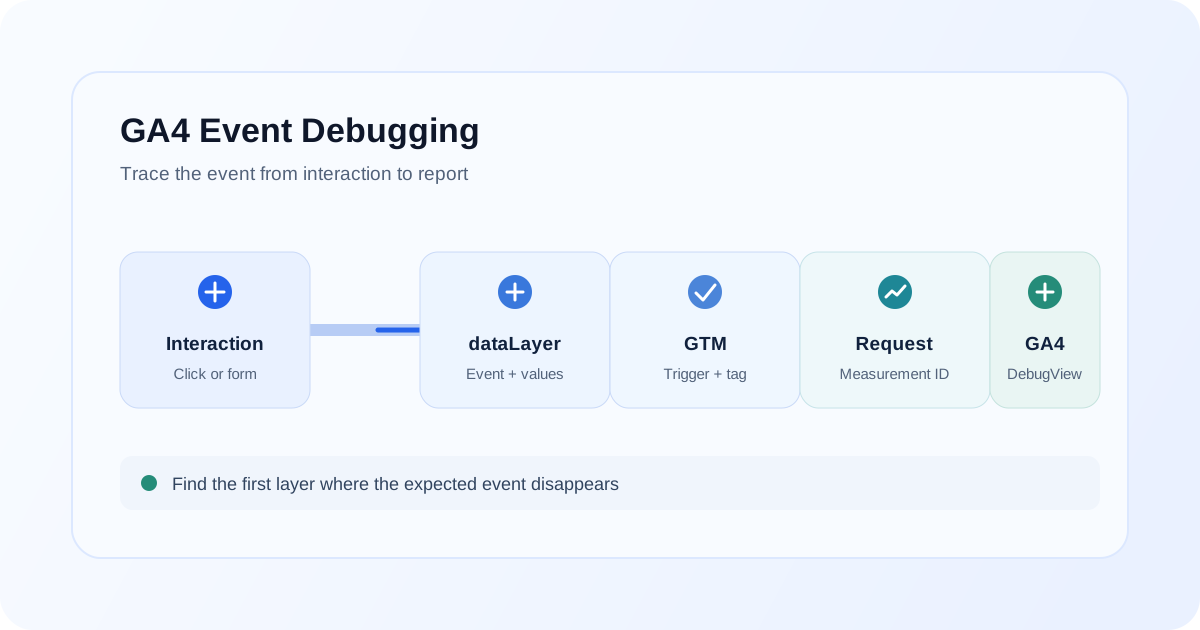
When a GA4 event does not appear, the cause can sit at several different layers. A click or form action may never happen; the website may not push the expected dataLayer event; a GTM trigger may not match; the GA4 tag may not send a request; or GA4 may receive the event while it is still absent from the report you are checking.
Trace the path in order:
Website interaction → dataLayer → GTM trigger → GA4 tag → network request → GA4 processing and reporting
This guide walks through each layer so marketers, SEO professionals, developers, and analytics teams can diagnose GA4 events not showing up without changing several settings at once.
Quick diagnosis
Start with the symptom, then inspect the next boundary in the event path. The table is a triage guide, not a substitute for checking the actual implementation.
| What you observe | First place to investigate | Useful next check |
|---|---|---|
| Event is not firing at all | The interaction and website event code | Confirm the action occurs, then inspect the dataLayer and browser console |
| Event fires in GTM but not GA4 | The GA4 tag, Measurement ID, consent state, and request | Check the tag details in Preview, then inspect Network for a GA4 collection request |
| Event appears in DebugView but not reports | Property, date range, report, filters, and processing | Confirm you are viewing the same property and allow for reporting processing time |
| Event name is wrong | The value passed by the site and the GTM tag | Compare the exact event_name or event name in the request with the intended name |
| Parameters are missing | The dataLayer object, GTM variables, and GA4 event tag | Check parameter keys and values at each step, including capitalization and variable resolution |
| Event appears twice | Multiple tags or handlers sending the same action | Compare request count and inspect GTM, hardcoded tags, plugins, and event listeners |
1. Check whether the user interaction actually happens
First reproduce the exact action that should create the event. Do not begin with the GA4 report: if the page never completes the intended interaction, downstream tracking cannot send it.
For a click, confirm the target is clickable and the expected link or button is activated. For a form, submit valid test data and confirm the form reaches its success state. If the form uses an embedded provider, a modal, or an AJAX submission, verify its real completion behavior rather than assuming a thank-you page will load.
Use browser developer tools to check for JavaScript errors during the interaction. Also note whether the page navigates or reloads immediately; a handler that runs only after navigation may not get a chance to push the event. Test in a controlled environment and avoid submitting real customer information.
2. Check the dataLayer
If the site uses Google Tag Manager, inspect whether the expected event and its data are pushed. Open the browser developer tools Console and inspect the recent entries:
window.dataLayer
For a quick look at recent pushes, an example Console expression is:
window.dataLayer?.slice(-10)
Look for the event name and any values the tag needs. For example, a site might push an event named form_success with a form identifier. That is only an example; the correct event and parameters depend on the site's measurement plan.
GTM Preview is also useful here: its event timeline shows dataLayer messages observed by the container. If the intended push is absent, the issue is likely in the site's interaction code, form integration, or dataLayer implementation, before the GA4 event tag is considered.
3. Check Google Tag Manager
Connect GTM Preview to the correct site and reproduce the action. Check each of these items:
- Container and published version: Confirm the site loads the expected GTM container. If the change is meant to be live, verify the correct container version was published; Preview can test workspace changes that are not yet published.
- Trigger: Confirm the intended trigger type matches the interaction, such as a custom event, form state, page view, or click.
- Trigger conditions: Review every condition, including URL, element, form, and dataLayer values. A condition that is too specific or checks the wrong variable can prevent a match.
- GA4 tag: Confirm that the intended Google tag or GA4 event tag is the one firing and that the event name and parameter mappings are correct.
- Measurement ID: Verify that the tag sends to the intended GA4 web data stream. A valid-looking but incorrect
G-...Measurement ID sends data to a different property. - Firing status: In Preview, inspect the selected event and confirm whether the tag appears under tags fired or tags not fired. Open the tag details to see which trigger conditions matched or failed.
For a wider implementation review, compare your container organization and validation process with the Google Tag Manager service. If the property, data stream, or event plan itself is uncertain, the GA4 setup service explains the measurement foundation to review.
4. Check the GA4 event request
GTM Preview reports what the container did; browser Network inspection can show whether the browser attempted to send an analytics request.
- Open developer tools and select Network.
- Enable Preserve log if the interaction navigates to another page.
- Clear the current request list, then reproduce the action.
- Filter for
collector inspect requests to a Google Analytics collection endpoint. - Open the request and inspect its query string or request payload for the Measurement ID and event name.
Collection requests may be sent using different request methods or endpoints. Do not rely on a single exact URL shape; verify the request details and whether the intended event name and destination are present. If no request is sent, check tag firing, consent behavior, blockers, and browser errors. If a request is sent to another Measurement ID, confirm which property owns that ID before changing the tag.
5. Check GA4 DebugView
DebugView is useful for validating implementation behavior while testing. In the GA4 property you intend to inspect, open Admin → Data display → DebugView (the navigation label may vary as the interface changes). Keep the debug session active, reproduce the interaction, and check whether the event appears with the expected name and parameters.
If it does not appear, confirm that your test device or browser session is being sent in debug mode, that you are looking at the correct property, and that the event request was actually sent. GTM Preview commonly enables debugging for events sent during its session, but the exact setup depends on the implementation.
DebugView helps validate event collection; it is not a replacement for checking standard reports or their filters and date ranges. Use it to narrow the collection problem before troubleshooting report presentation.
6. Check event names and parameters
GA4 event names are exact values. form_submit, form-submit, and Form_Submit are different names; accidental variations can split what a team expects to see as one event. Choose a consistent name in the measurement plan, then compare it with the value configured in GTM and the value present in the request.
Parameters need the same care. Check that:
- The parameter key is spelled and capitalized consistently wherever it is set and read.
- GTM variables resolve to a value at the event where the tag fires.
- A parameter is attached to the event rather than mistakenly configured as a user property.
- Values use the expected type and format for the reporting question.
If a parameter is missing in DebugView, trace it backwards: request payload → GA4 tag mapping → GTM variable → dataLayer push. If event names or key events changed during a migration, review the mapping rather than adding another tag as a workaround. The GA4 migration service covers that kind of transition review.
7. Check consent and privacy controls
Consent mechanisms can affect whether analytics requests are sent, depending on the user's choice and how the site and tags are implemented. A consent banner, consent management platform, GTM consent settings, and tag behavior need to be considered together.
Test the flow in the relevant consent states using an approved test setup. Confirm the default state, what changes after a user makes a choice, and whether the analytics tag behaves as intended. Do not infer that tracking is broken just because a request is absent before consent; first verify the site's intended consent behavior and applicable requirements.
8. Check filters and reporting
An event can be collected without appearing immediately in the report you expected. Before changing the implementation, check that:
- You are in the same GA4 property and data stream used by the tag.
- The selected date range includes the test and the report uses the expected event dimension.
- Report filters, comparisons, and search terms are not excluding the event.
- Internal or developer traffic filters are understood; a filter's configuration and state can affect what is included in reporting.
- You distinguish near-time validation tools from standard reports, which may take longer to reflect processed data.
If the event appears in DebugView but not in a standard report, preserve the event implementation while checking the property, report configuration, filters, and processing status. Avoid creating a second event just to make the name appear in a particular report.
9. Check duplicate events
If an event appears twice, compare the request count for one interaction and check for overlapping implementations. Common causes include:
- More than one GA4 tag sending the same event.
- A GTM implementation running alongside a hardcoded implementation.
- Duplicate or overlapping triggers in the GTM container.
- Multiple click or form listeners attached to the same element.
- A form success handler running both on submission and on a later confirmation state.
Use GTM Preview and Network together to identify which tags and requests correspond to one action. Remove or correct the duplicate source only after confirming the intended implementation path.
10. A practical troubleshooting workflow
Follow the chain in order and record what you observe at each step:
- Interaction: Reproduce the exact click, form completion, or other action.
- dataLayer: Confirm the expected event and required values are pushed.
- GTM Preview: Confirm the correct trigger matches and the intended GA4 tag fires once.
- GA4 request: Confirm a request is sent to the intended Measurement ID with the expected event name.
- DebugView: Confirm GA4 receives the test event and inspect its parameters.
- Reports: Confirm the property, date range, filters, and reporting view; allow for processing before concluding the event is missing.
This order helps separate a site interaction issue from a GTM issue, a request issue, or a reporting issue.
Common GA4 event troubleshooting mistakes
| Mistake | Why it causes confusion | Better check |
|---|---|---|
| Checking reports before testing collection | The event may not have been sent, or reporting may not have processed it yet | Reproduce the interaction and check GTM Preview and DebugView first |
| Testing the wrong property | The event may be arriving elsewhere | Compare the tag's Measurement ID with the property open in GA4 |
| Assuming a GTM tag firing proves GA4 received the event | A firing tag does not by itself confirm the intended request and destination | Inspect the browser Network request and DebugView |
| Adding another tag before identifying the first | This can create duplicate events while leaving the original issue unclear | Trace one interaction through each layer before editing implementation |
| Treating parameters and user properties as interchangeable | They describe different kinds of information and appear in different contexts | Check the event payload and the intended data model |
| Ignoring consent state during testing | Tag behavior may differ depending on consent choices | Repeat the test under the intended consent conditions |
When to perform a broader GA4 audit
If one event is missing, a focused trace through the interaction, dataLayer, GTM, request, and DebugView may be enough. If several events are missing, names or parameters are inconsistent, duplicate tracking appears in multiple journeys, or reports do not reflect the intended measurement plan, review the wider implementation rather than patching each symptom separately.
A GA4 audit can review the property configuration, event and key-event setup, GTM logic, and reporting assumptions together. The scope should be based on the issues found; an audit is a diagnostic review, not a guarantee that every discrepancy has one cause.
If the event problem appeared after a migration, compare the current setup with the intended mapping and the GA4 migration guide. For related ecommerce reporting differences, see why GA4 and an ecommerce platform can show different revenue.
Final takeaway
When GA4 events are not showing up, trace one real test interaction from the website through the dataLayer, GTM, outgoing request, DebugView, and reporting. Identify the first point where the expected event is absent, then investigate that layer. This is more reliable than changing triggers, tags, or reports without knowing where the event path breaks.
FAQ
Why are my GA4 events not showing?
The event may not be triggered by the site, may be missing from the dataLayer, may not match a GTM trigger, or may not be sent to the property you are checking. Start with the interaction and follow the event through Preview, Network, and DebugView.
Why does GTM say the tag fired but GA4 does not show the event?
Tag firing in Preview confirms that GTM's firing conditions matched in that session; it does not alone confirm the request reached the intended GA4 property or appears in a standard report. Check the Measurement ID, consent behavior, Network request, and DebugView.
How long does GA4 take to show events?
Use DebugView and Realtime for near-time testing, but there is not one guaranteed reporting delay for every event and report. Standard reports can take longer to reflect processed data, so verify collection first and check the report's property, date range, and filters.
Why does an event appear in DebugView but not in reports?
The event may still be processing, the report may use a different date range or property, or a filter, comparison, or report configuration may exclude it. Confirm the same property and inspect reporting filters before changing the event tag.
How do I test GA4 events?
Reproduce the action with GTM Preview connected, confirm the dataLayer event and tag firing, inspect the outgoing GA4 request, and check the event and parameters in DebugView. Then verify it appears in the appropriate report after processing.
What should I check if GA4 event parameters are missing?
Trace each parameter from the dataLayer value through the GTM variable and GA4 tag mapping to the request payload. Check spelling, capitalization, variable resolution, and whether the value was sent as an event parameter rather than a user property.
Still can't isolate the missing event?
A structured GA4 audit can review the event definition, dataLayer, GTM configuration, request flow, and reporting setup together.