
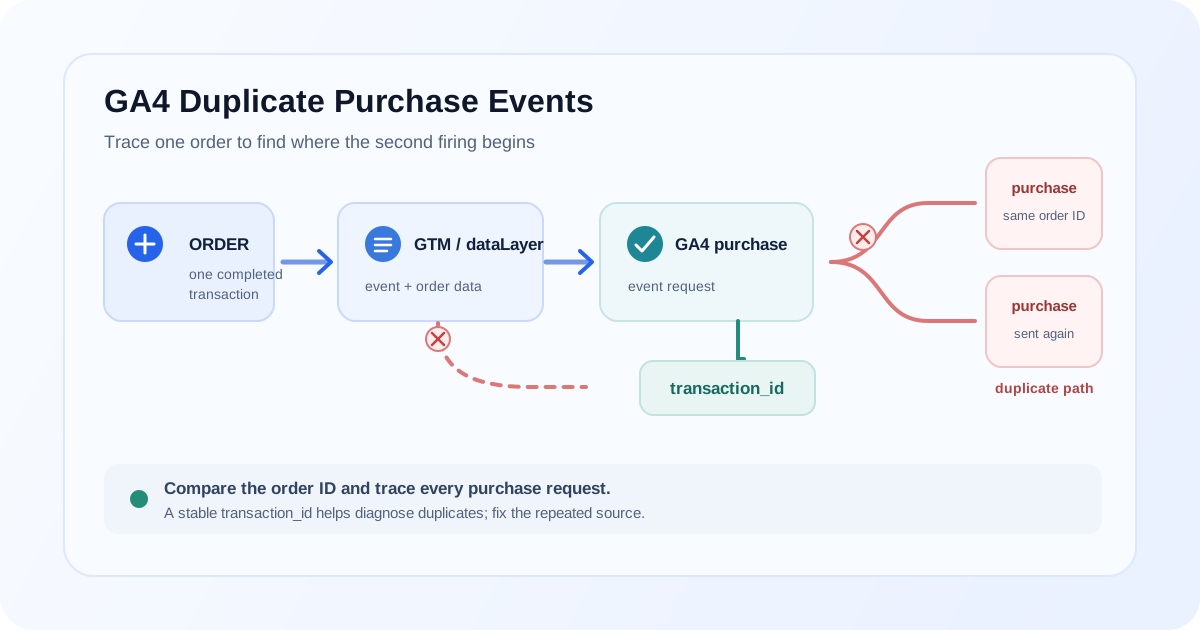
One completed order should not accidentally produce multiple purchase measurements. If the same order is sent to Google Analytics 4 more than once, purchase counts and revenue can be overstated, and the data may no longer match the ecommerce platform.
First distinguish a duplicate event for one order from a genuine second order. Two legitimate orders should have distinct order or transaction identifiers; a repeated request for the same completed order may be an implementation problem. Do not diagnose duplication from a high purchase count alone: compare the orders and event payloads.
This guide explains how to trace a repeated purchase event from the order confirmation back through the site's data layer, Google Tag Manager (GTM), and any ecommerce integration. The goal is to correct the source, not merely hide the symptom.
How GA4 identifies a purchase
GA4 ecommerce measurement uses the purchase event to describe a completed transaction. A useful implementation sends the transaction and its relevant value details together:
| Field | Purpose | Example |
|---|---|---|
event_name |
Identifies the action as a purchase | purchase |
transaction_id |
Identifies the associated transaction | An order ID assigned by the store |
value |
Sends the transaction value according to the implementation's revenue definition | 89.95 |
currency |
Identifies the currency for the value | USD |
items |
Describes the purchased products or services | Item IDs, names, quantities, and prices |
For example, a purchase data-layer message might look like:
dataLayer.push({ ecommerce: null });
dataLayer.push({
  event: 'purchase',
  ecommerce: {
    transaction_id: 'ORDER-10482',
    value: 89.95,
    currency: 'USD',
    items: [
      {
        item_id: 'SKU-RED-01',
        item_name: 'Red notebook',
        price: 29.95,
        quantity: 3
      }
    ]
  }
});
This is an illustrative payload; use the structure expected by your actual data layer and GTM variables. The transaction ID should correspond to the real order and remain stable when the same order is retried or its confirmation page is revisited. Avoid sending a blank ID or creating a new ID every time the event fires.
How duplicate purchase events happen
The store may have one order while the browser or integration sends its purchase measurement more than once. The same symptom can have different causes, so inspect the specific order and follow its event path.
Thank-you page reload or browser refresh
If purchase tracking runs whenever an order confirmation page loads, refreshing the page can run the purchase code again. A customer can also revisit the confirmation URL from browser history. If the page replays the same order data and the implementation sends another event, the browser may send a repeated purchase.
GTM trigger fires more than once
A trigger can match multiple data-layer messages, evaluate repeatedly during a single-page navigation, or be configured to fire on both a custom event and a page view. Inspect the GTM Preview event timeline and tag firing details for the same test order.
Multiple GA4 tags or implementation paths
The same order may be sent by more than one source:
Ecommerce platform integration ──→ GA4 purchase
GTM purchase tag               ──→ GA4 purchase
Custom website code            ──→ GA4 purchase
If a plugin, a Google tag setup, GTM, and custom code are all configured to send purchases, determine which path actually emitted each request. Having a GTM tag configured does not prove it is the only implementation.
Duplicate dataLayer pushes
An order callback can push the same purchase payload twice because a success handler runs twice, a component mounts again, or code is registered by more than one script. Confirm the number and contents of purchase pushes in the data layer before changing the GA4 tag.
Ecommerce platform or plugin sends its own event
Many platforms and plugins can implement GA4 measurement directly or through an integration. If that integration is active alongside a separate GTM purchase implementation, both may send the same order. Check the platform's analytics settings and any plugin or checkout integration as well as the GTM container.
SPA and navigation behavior
In a single-page application, client-side route changes do not behave exactly like full page loads. A confirmation component can render again, route listeners can run twice, or a history change and custom event can both satisfy a trigger. Diagnose the navigation and event lifecycle that actually occurs instead of assuming a page-view trigger runs only once.
Why transaction_id matters
transaction_id is the bridge between a GA4 purchase event and the order recorded by the ecommerce platform. Use it to compare one order across sources, examine whether repeated purchase payloads refer to the same transaction, and check whether value, currency, and item details are consistent.
GA4 can use transaction IDs to help deduplicate purchase events for web data streams. This is a safeguard, not a substitute for correct event delivery, and it should not be treated as a universal guarantee that every repeated purchase will disappear from every report or integration. Deduplication cannot reliably identify the same transaction when the ID is missing, blank, or changes between sends. Reused IDs across genuinely different orders can also obscure valid activity.
Keep the transaction ID stable for one order and unique across distinct orders within the store's order system. Verify exactly what the tag sends; don't assume a data-layer variable has the same value as the order ID shown in the admin.
How to diagnose duplicate purchases
Pick one test order or a carefully selected affected order, then trace the same transaction through each collection layer. Avoid placing real orders unnecessarily; use a test environment when available, and follow the store's approved test-order process.
1. Compare orders with GA4 transaction IDs
Start with the ecommerce platform's order record. Find its order ID, value, currency, and items, then compare those with the corresponding GA4 purchase records available to you. Check whether multiple purchase events have the same transaction ID and whether a supposed second purchase is actually a separate order.
2. Inspect data-layer pushes
In browser developer tools, inspect the recent data-layer entries after completing the test checkout:
window.dataLayer?.filter((entry) => entry.event === 'purchase')
Review each matching push for its transaction ID and ecommerce data. If the same order is pushed twice, the duplicate happens before or at the data-layer source; inspect the checkout callback, integration, and scripts that create the push.
3. Use GTM Preview
Connect GTM Preview to the same checkout flow and examine the event timeline. For every purchase-related data-layer event:
- Check whether the intended purchase trigger matches.
- Review each GA4 purchase tag under tags fired and not fired.
- Open the tag to check its event name and resolved transaction ID.
- Look for multiple purchase tags, overlapping triggers, and repeated timeline events.
- Compare Preview results with platform or plugin integrations that may bypass GTM.
For help organizing the container and isolating overlapping tags, see the Google Tag Manager service.
4. Inspect browser network requests
Open the browser's Network panel, enable Preserve log before checkout, and reproduce the test transaction. Inspect analytics collection requests and compare the event name, destination Measurement ID, transaction ID, and request count. Multiple matching requests can show that the browser attempted to send the event more than once, including requests from separate tags or scripts.
A tag firing in GTM Preview and a request in Network are separate observations. Check both: Preview helps identify GTM sources, while Network can reveal requests sent outside the container.
5. Check GA4 DebugView
In the intended GA4 property, use DebugView while testing the order. Inspect the purchase event and its transaction_id, value, currency, and items. Compare its event sequence with GTM Preview and Network. DebugView is useful for testing collection; it does not by itself identify which script generated an event, so use the other tools to trace the source.
If the purchase is missing rather than duplicated, follow the GA4 events not showing debugging guide.
Common GTM duplicate purchase scenarios
| Scenario | What can happen | What to inspect |
|---|---|---|
| Purchase tag uses both a custom-event trigger and a page-view trigger | Both triggers can send a purchase for the same order confirmation | GTM Preview timeline and tag trigger configuration |
| Two purchase tags listen for the same data-layer event | One push can produce two GA4 requests | Every tag fired for the purchase event |
| Trigger listens to a broad event or URL condition | A later route or page event can match again | Trigger filters and the sequence of checkout events |
| GA4 event tag is duplicated across containers | Two containers can send the same action | Container IDs on the checkout page and Network requests |
| GTM and hardcoded code both send purchases | The browser can send one request from each implementation | GTM Preview plus Network inspection |
| Plugin or platform integration is enabled beside GTM | An external integration can send a parallel event | Platform analytics settings, plugins, and checkout integrations |
| SPA confirmation logic runs on repeated renders | Route or component changes can cause another data-layer push | Application event lifecycle and actual data-layer entries |
Do not disable tags at random. Identify which source emitted each request and preserve the one intended purchase implementation.
How to prevent duplicate purchase events
Use one intentional implementation path
Decide whether the platform integration, GTM, or custom code owns the GA4 purchase event. Document how the order data reaches that implementation, and confirm other integrations are not also sending the event. A clear owner makes future checkout changes easier to review.
Keep transaction IDs stable
Populate transaction_id from the store's real order record. Repeated sends for the same order should not generate a fresh ID just to avoid looking duplicated. Conversely, two distinct orders should not accidentally share an ID. Check ID presence and value in Preview and in the outgoing request.
Fire only on confirmed completion
Use the store's actual successful-order state, not a generic button click or an unqualified page load. Configure the trigger so it matches the intended completed order once. If a confirmation page can be revisited, design and test the implementation's repeat behavior instead of assuming the page only loads once.
Avoid duplicate GA4 configuration
Inventory platform integrations, GTM containers, Google tag configuration, plugins, and custom scripts that can send ecommerce events. A configuration tag does not necessarily duplicate a purchase by itself, but duplicate event tags or parallel integrations can. Validate the real requests rather than relying only on names or tag labels.
Govern ecommerce changes
Record the source of each event, data-layer contract, transaction ID field, trigger condition, and test procedure. Review checkout, plugin, and theme changes for tracking side effects. Before publishing a GTM change, use Preview to verify one successful test order produces the intended purchase measurement.
If you are standardizing event names and their context fields at the same time, the guide to GA4 events and parameters explains how to keep those definitions consistent.
For a broader measurement foundation, review the GA4 setup service. If you are planning or correcting a full ecommerce data layer and purchase flow, see the GA4 ecommerce implementation service.
Example troubleshooting workflow
Use one controlled order and record what each layer shows:
- Confirm the source order. Record the store's order ID, value, currency, and line items.
- Reproduce or select the affected order. Use an approved test flow where possible; don't create a real transaction merely to investigate if a safe test option exists.
- Inspect the data layer. Count purchase pushes and check whether they contain the same transaction ID and expected ecommerce data.
- Check GTM Preview. Identify every purchase tag and trigger that fires, including repeated custom events or page views.
- Check other implementations. Review platform integrations, plugins, other containers, and hardcoded scripts.
- Inspect Network and DebugView. Compare requests, destination, event name, transaction ID, and values with Preview.
- Correct the confirmed source. Remove or constrain the duplicate path without breaking the intended implementation.
- Retest a fresh order and a confirmation-page revisit. Verify the intended event behavior and preserve the evidence for the change.
Change one source at a time where practical. That keeps the cause-and-effect clear and helps prevent a fix for duplicate events from accidentally removing valid purchases.
Duplicate purchase diagnostic table
| What you find | Likely point to investigate | Next check |
|---|---|---|
Two purchase entries in dataLayer for one order |
Checkout callback, platform integration, or code that pushes the event | Find which script or lifecycle callback creates each push |
| One data-layer push, two GTM tags fired | Duplicate tags or overlapping triggers | Inspect both tags and retain the intended event path |
| One GTM tag fired, multiple purchase requests in Network | Another container, integration, or custom script may send a parallel request | Inspect request initiator and all checkout integrations |
| One request per order but repeated GA4 purchase records | Compare transaction IDs, destination property, and reporting scope | Check whether IDs differ or events are sent to multiple streams |
| Same order ID but missing or blank GA4 transaction ID | Tag mapping or ecommerce payload is incomplete | Trace the ID from the order object through the data layer and tag |
| Two records with different valid order IDs | Could be two genuine orders, not a duplicate | Verify both orders in the ecommerce platform before changing tags |
| Revisit sends the same event again | Confirmation-page or SPA revisit behavior | Review trigger conditions and repeat-send behavior for the same order |
Each row is a diagnostic clue, not a conclusion. Confirm the event source and transaction details before changing production tracking.
How duplicate purchases relate to revenue discrepancies
If repeated purchase events are accepted into reporting, they can contribute to higher event counts or purchase revenue than the store reports. Revenue can also differ for other reasons, including missing purchases, refunds, tax and shipping treatment, consent, currency, or attribution. A duplicate is one possible cause, not an explanation to assume without evidence.
For a broader comparison of order totals and analytics revenue, see why GA4 shows different revenue than an ecommerce platform. Use transaction-level evidence to separate duplicate events from differences in revenue definitions or reporting.
When to audit the ecommerce implementation
A focused tag fix may be enough when one duplicate source is clearly identified. Consider a broader review if several checkout paths behave differently, purchases are sent by multiple systems, transaction IDs are inconsistent, item data is incomplete, or changes keep reintroducing the issue.
A GA4 audit can review property and tag configuration against the intended measurement plan. For checkout-specific event design, payloads, and validation, the GA4 ecommerce implementation service provides a focused place to review the implementation.
FAQ
Why is GA4 counting purchases twice?
The same order may be sent by more than one source, such as a platform integration and GTM, or a purchase trigger may run again on a page reload, repeated data-layer push, or SPA navigation. Compare the order's transaction ID, then trace the event through data layer, Preview, Network, and DebugView.
Can refreshing a thank-you page create a duplicate purchase?
Yes, if the purchase event is sent whenever the confirmation page loads and the implementation sends it again on refresh or revisit. Test that behavior with the same order and review the trigger conditions and transaction ID.
Does transaction ID prevent duplicate purchases?
Not by itself. A stable transaction ID lets GA4 associate an event with its transaction and can support deduplication for web-stream purchase events, but it does not prevent duplicate requests at the source or guarantee every duplicate scenario is handled. Send a real, stable, non-empty order ID and fix repeated firing.
How do I find duplicate purchase events in GTM?
Use GTM Preview during a controlled checkout, inspect the purchase-related data-layer events, and check every tag under tags fired for each event. Then compare Preview with Network requests, since platform integrations and custom code may send events outside GTM.
How do I debug duplicate purchases in GA4?
Compare the ecommerce platform's order records with GA4 transaction IDs and values. During a test, inspect GTM Preview, browser Network requests, and DebugView to find where the same order is sent more than once and which Measurement ID receives it.
Why does GA4 revenue become higher than my ecommerce platform?
Duplicate purchase events can be one reason, but differences may also come from revenue definitions, refunds, tax or shipping treatment, currency, or attribution. Compare individual orders and payloads before deciding which cause applies.
Final takeaway
When GA4 records a possible duplicate purchase, start with the order—not the report. Compare its transaction ID and value, trace the event through the data layer, GTM, other integrations, Network, and DebugView, then correct the source that actually sends it more than once. A stable transaction ID helps connect events to orders, but reliable tracking still depends on a deliberate, tested implementation path.
Need help tracing duplicate ecommerce events?
A GA4 audit can trace a test order across the ecommerce platform, dataLayer, GTM, and GA4 to identify which implementation is sending the repeated purchase.