
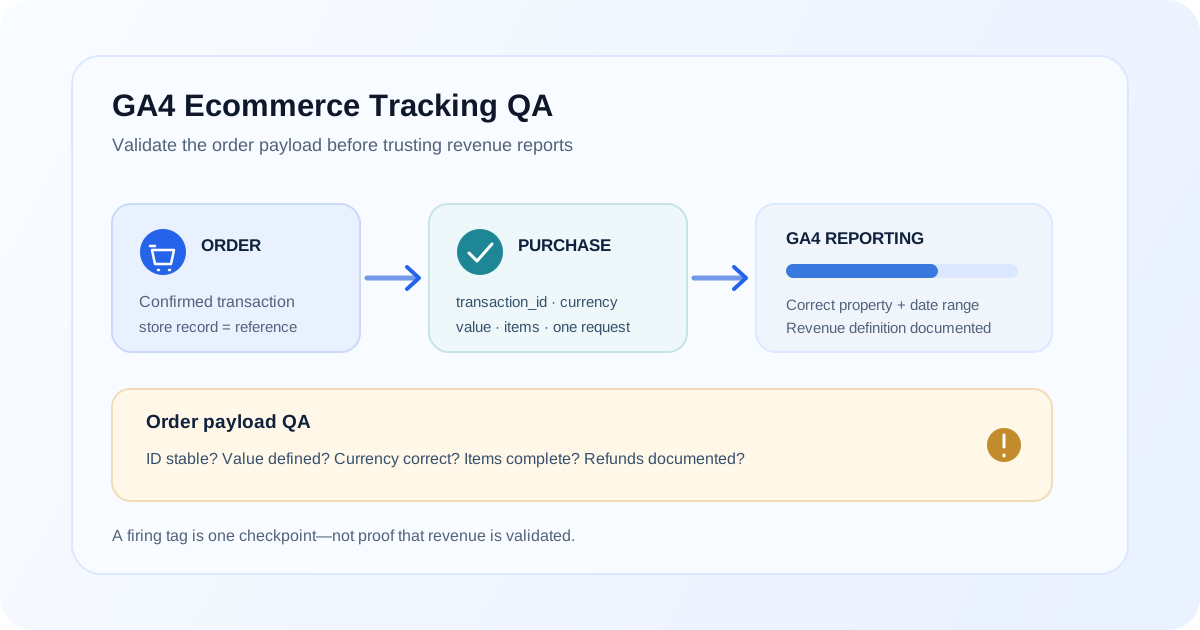
A GA4 purchase tag can fire successfully and still send the wrong order, omit item details, use the wrong currency, or fire more than once. A revenue report is only useful when the ecommerce implementation and the reporting definition are both understood.
Use this checklist to inspect the full path from a completed order to GA4 reporting. Validate with controlled test transactions where possible, and compare a real order record only when your data-handling process allows it.
1. Confirm the event represents a completed order
The purchase event should correspond to the store's confirmed transaction, not merely a checkout button click or an intermediate payment step. Map the checkout lifecycle and identify the point where the order is accepted.
| Check | Evidence to inspect | Common warning sign |
|---|---|---|
| Purchase timing | Order confirmation state and event timeline | Event fires before payment or order acceptance |
| Event count | One controlled order in GTM Preview and Network | Multiple tags or requests for one order |
| Destination | Measurement ID and GA4 property | Request goes to an unintended property |
| Reload behavior | Revisit or refresh the confirmation state | Same order sends again without intended handling |
| Consent behavior | Approved tests under relevant consent choices | Event behavior differs unexpectedly across states |
For duplicate events, compare the browser requests with order IDs and use the guide to GA4 duplicate purchase events before removing a tag.
2. Validate transaction identity
transaction_id should identify the store order and remain stable when that same order is sent again. Check that the value is present, non-empty, and mapped from the correct order field. Distinct orders should not accidentally share an ID.
Use the order system as the reference when testing. Compare the order ID shown by the platform with the value in the data layer, GTM tag, outgoing request, and GA4 event. Transaction IDs help connect events to transactions and may support purchase deduplication, but they are not a substitute for preventing duplicate sends.
3. Verify revenue fields and definitions
Agree what “revenue” means for the business and how the implementation maps it. Check value, currency, tax, and shipping against the order and the chosen reporting definition. Confirm that values are numeric where expected and currency codes match the transaction.
Do not assume GA4 should equal every total shown by the storefront, finance system, or CRM. Those systems may include or exclude different components or use different processing rules. The article on why GA4 revenue differs from an ecommerce platform covers a systematic comparison.
4. Inspect the items array
For each test purchase, inspect whether items contains the expected products or services and whether item identifiers, names, prices, and quantities map correctly. Check that each item belongs to the transaction and that array values are not accidentally reused from a previous page or cart state.
For a multi-item order, compare the sum implied by item prices and quantities with the value sent by the implementation, while accounting for the agreed treatment of discounts, tax, and shipping. A mismatch is a prompt to inspect the mapping and business definition—not to assume one field is universally authoritative.
5. Follow the data through GTM
When GTM is part of the implementation, use Preview for a controlled checkout:
- Confirm the expected ecommerce data-layer event appears once.
- Open the event and inspect the available ecommerce object and order values.
- Confirm the intended purchase trigger matches and unrelated triggers do not.
- Inspect the GA4 event tag's name, Measurement ID, transaction ID, value, currency, and item mapping.
- Check whether another tag, container, plugin, or site script sends a parallel purchase.
- Inspect Network requests and DebugView to verify what actually reaches GA4.
Use a consistent data-layer contract and tag ownership. The Google Tag Manager service and GA4 setup service are useful references when the container or property design needs review.
6. Check refunds and post-purchase changes
Decide how the organization represents refunds, cancellations, and order adjustments. Inspect the event design and reporting logic for those lifecycle events, and compare the same order period and state across systems. Do not silently edit the original purchase value to make a later refund disappear from analysis; document the implementation's intended treatment.
7. Reconcile reports against orders
Choose a period and a small set of orders. Compare order IDs, event counts, currency, value, and item data. Ensure the reports use the correct property, date range, filters, and revenue metric. Keep attribution differences separate from transaction collection: attributed revenue and transaction totals answer different questions.
If events appear missing, follow the GA4 events not showing debugging guide. If the work spans multiple journeys or property settings, use a GA4 audit to review the broader measurement implementation.
Quick audit scorecard
Before using revenue data for a decision, confirm that you can answer these questions:
- What event and exact condition represent a completed order?
- Which field supplies the stable transaction ID?
- What is the documented definition of
value,currency, tax, and shipping? - Are item IDs, names, prices, and quantities present and mapped correctly?
- Does one controlled order create the intended request count?
- Are refunds and cancellations represented according to a documented rule?
- Have you matched test orders to GA4 using the correct property and reporting window?
If an answer is unknown, treat the corresponding report as unvalidated until you collect evidence. A review of the GA4 ecommerce implementation service can help assess payloads and testing across the checkout journey.
FAQ
Which GA4 events are used for ecommerce tracking?
GA4 supports recommended ecommerce event names such as view_item, add_to_cart, begin_checkout, and purchase. Use the events that match your actual user journey and implementation; do not send events for actions that did not occur.
Does a firing purchase tag prove revenue tracking is correct?
No. Confirm the destination, transaction ID, value, currency, items, timing, and request count. A tag can fire with missing or incorrect ecommerce values.
Does transaction_id prevent duplicate purchases?
It helps identify a transaction and can support deduplication, but does not prevent duplicate requests or guarantee every duplication case is resolved. Keep the ID stable and fix repeated event sources.
Why does GA4 purchase revenue differ from the store?
Possible causes include missing or duplicate events, different value definitions, currency issues, refunds, consent, and reporting scope. Compare individual orders and payloads before changing revenue calculations.
Should tax and shipping be included in GA4 purchase value?
Follow a documented business definition and GA4 ecommerce implementation requirements. Map value, tax, and shipping consistently and compare those fields with the order record; do not assume every store defines revenue identically.
How do I test GA4 ecommerce events safely?
Use a test environment or an approved test transaction, GTM Preview, Network inspection, and GA4 DebugView. Record the order data and verify one intended event reaches the correct property without exposing personal information.
Final takeaway
Before trusting ecommerce revenue in GA4, validate the event condition, transaction ID, value definition, currency, item data, duplicate behavior, refunds, and report scope against order evidence. A purchase tag firing is only one checkpoint in a reliable measurement path.
Need a review of your ecommerce measurement?
A focused ecommerce implementation review can validate purchase payloads, GTM behavior, and revenue definitions against the store's order records.